Visual Lightbox instructions
When creating your project in Visuallightbox you can use
any style or size for the thumbnails or the pop up images
Publish the gallery to a local folder on your computer
- Do not use the default index for the file name rather create
a unique page name
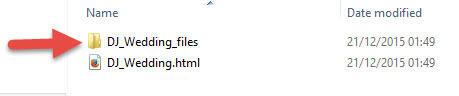
This will create a folder in your chosen location with
the contents below
For the slideshow to work you must copy, or ftp, ONLY the folder indicated, which
has the same name as your chosen html page name to the root of where
you will publish your Xara website be that an export folder or webhost
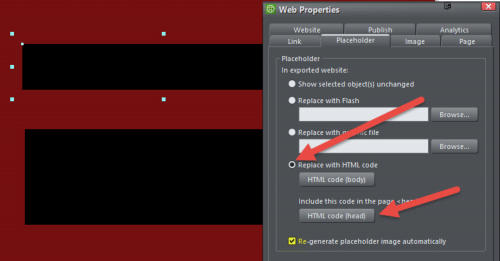
On the page where you want your gallery to appear create two rectangles
Right click on the first one and select web properties >
Then as indicated select replace with HTML, and click the HTML code head
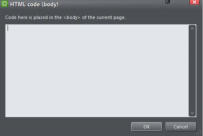
button this will bring up a text box (see right hand image above).
Now go to the folder where the visual lightbox gallery was first saved and open
the html file in text view, you can use notepad but it is easier if you have an html editor
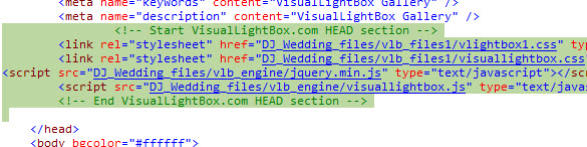
(I have used microsoft expressions in the example below) Look for this code
and paste it (and nothing else) into the popup for the header in Xara (leave the html
editor window open as you will need it again)
Paste only from the “Start” comment to the end “comment” - I like to include the
comments as it aids troubleshooting later on if you have problems - that done click
OK button
Now select the second box you created and repeat the process to make it a
placeholder, only this time you will press “HTML Code Body button”
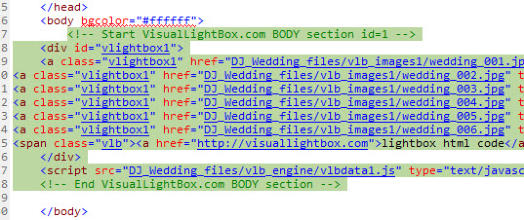
Go back to the html text view and this time paste all the code from “Start….BODY”
to “END……BODY” into the body pop up text box and click OK
nb - the reason I prefer using a web editor like Expressions rather than Notepad
is that the coloured text makes it easy to spot the start and end comments
Back to Xara - you should find that the body text box now shows just the text links
to your images
You will never be able to view the thumbnails in Xara editor as the folder with
the images is not in the Xara save file (if anyone knows a way to get this to happen
please post in the forum and I will add to these instruction pages)
You now need to publish the website to the same where you posted the folder
with the slideshow name at the start.
Good luck I hope this works for you